Interface Elements
The panels, bars, and tabs of the graphical interface, in the order in which you use them to build, navigate, and check a model. The interface map shows where each one is located.
Functor Library
Shows functors and submodels.
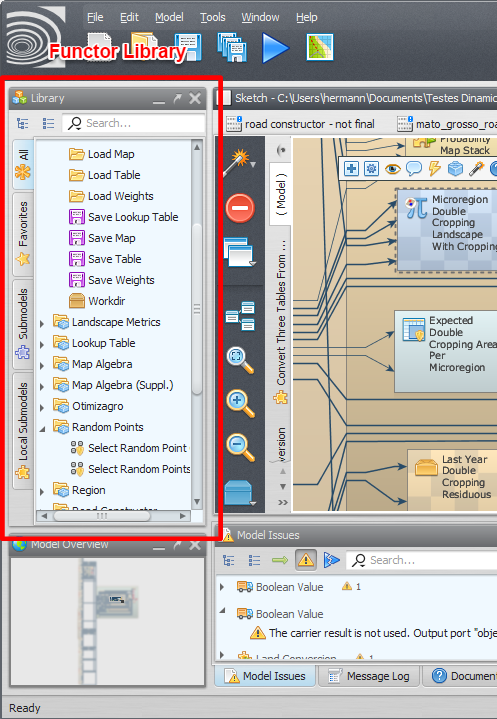
You can search for functors and submodels, view their documentation, mark them as favorites, and so on. Drag a functor or submodel from the library to the model presentation area to use it in a model, or double-click its name.
- When a functor is created by dragging its name, hold down Shift while dragging to connect it automatically to the functor currently selected in the sketch.
- Reorder the tabs by dragging a tab to its new position in the tab bar.
- A submodel’s group in the library, including subgroup placement, is set by whoever creates or edits it; see Updating Local Submodels. The library placement of ordinary functors is fixed by their own definition.
The library has four tabs:
| Tab | Description |
|---|---|
 All | All functors, including system and user submodels. Local submodels are not included. Functors and submodels are grouped by category (Input/Output, Table, Control, etc.). |
 Favorites | Functors and submodels marked as favorites (with the star next to the name), grouped by category. |
 Submodels | System and user submodels, grouped by category. |
 Local Submodels | Local submodels of the models currently open, grouped by model. |
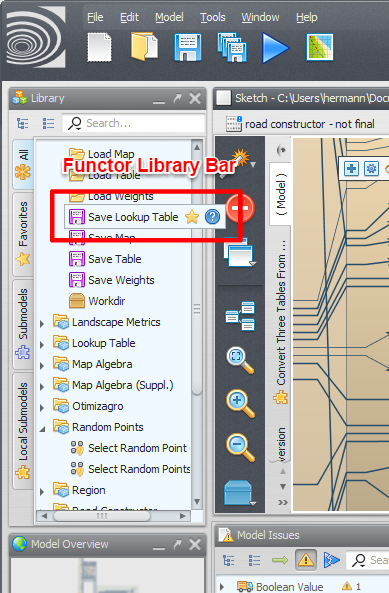
Functor Library Bar
Shown when the mouse hovers over a functor or submodel name. It provides the actions available for that item: marking it as a favorite, viewing its documentation, importing a submodel definition, and so on. The available actions depend on the kind of item (regular functor, submodel, local submodel).
Model Presentation
The main panel, where models are presented. It is also referred to as the Sketch. To open an existing model, drag its script file from Windows File Explorer to this panel.
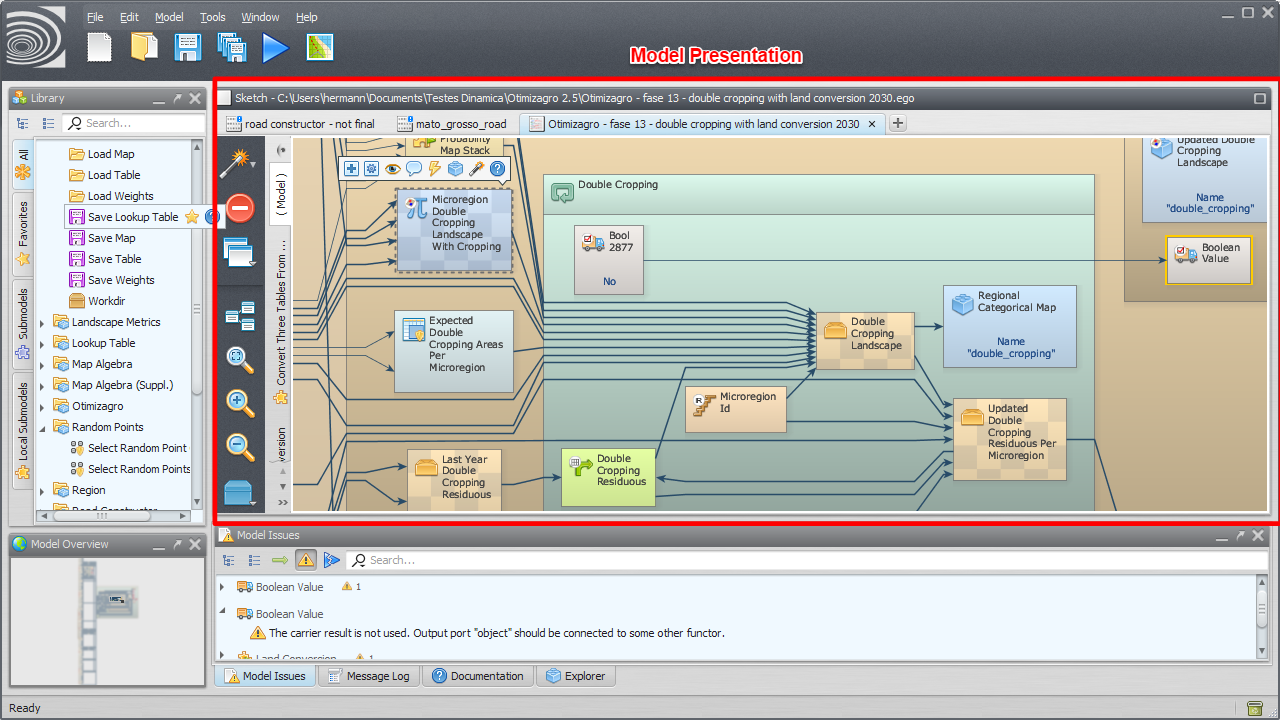
Zoom with the mouse wheel (the zoom is centered on the mouse pointer) and pan by dragging with the right mouse button.
Model Selection Tabs
Select the current model.
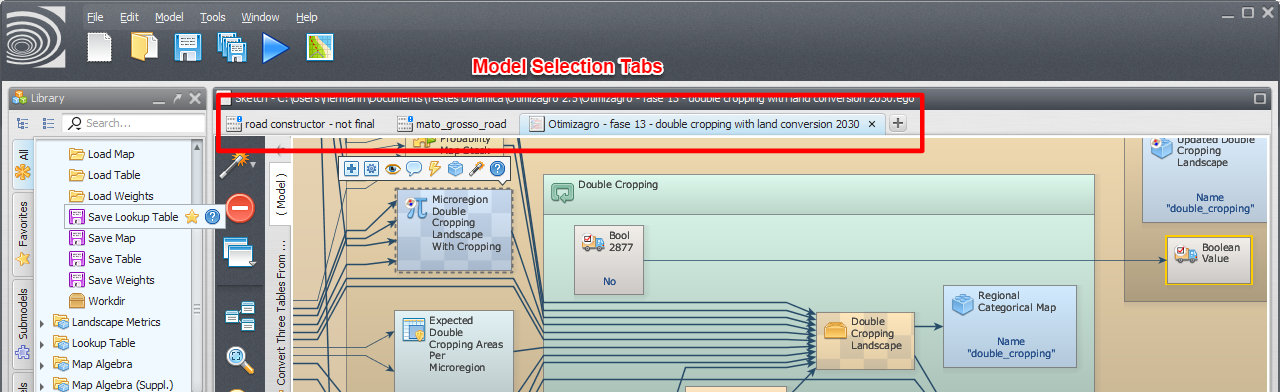
- Drag a tab to reorder it.
- Hover over the tabs and use the mouse wheel to scroll through a long list of open models.
- Hover over a tab and press Ctrl+C, or right-click the tab and choose the option from its context menu, to copy the model’s full file name or the name of its folder.
Local Submodel Selection Tabs
Select the current local submodel or the main model.
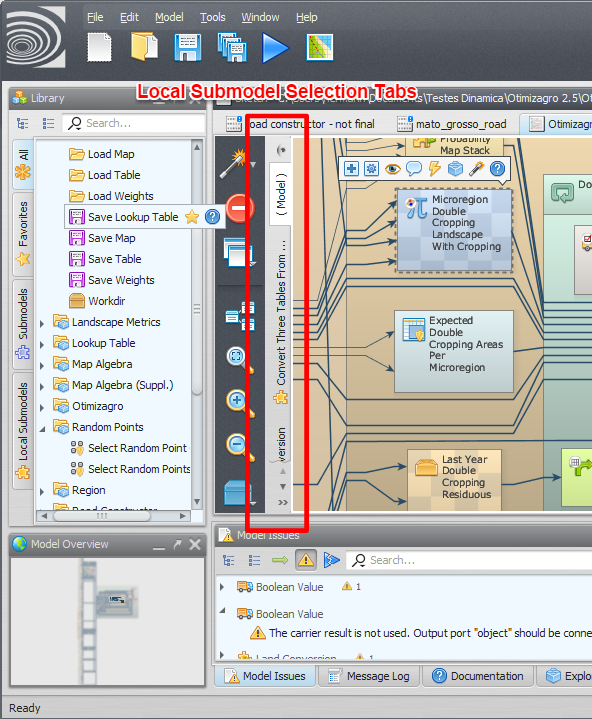
- The main model is named
( Model ). Local submodels have custom names and a custom icon. - Drag a tab to reorder it. Hover over the tabs and use the mouse wheel to scroll through a long list.
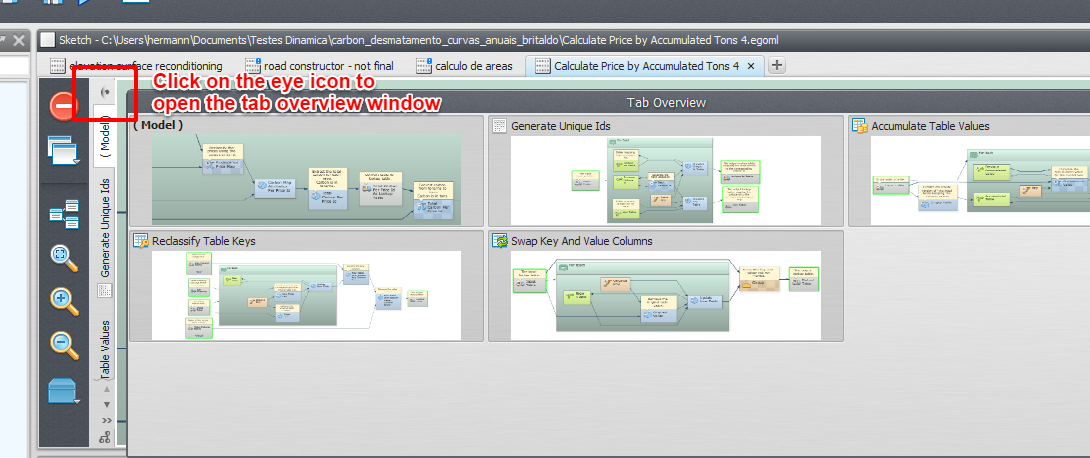
- A submodel can also be selected with the submodel overview button, above the tabs.
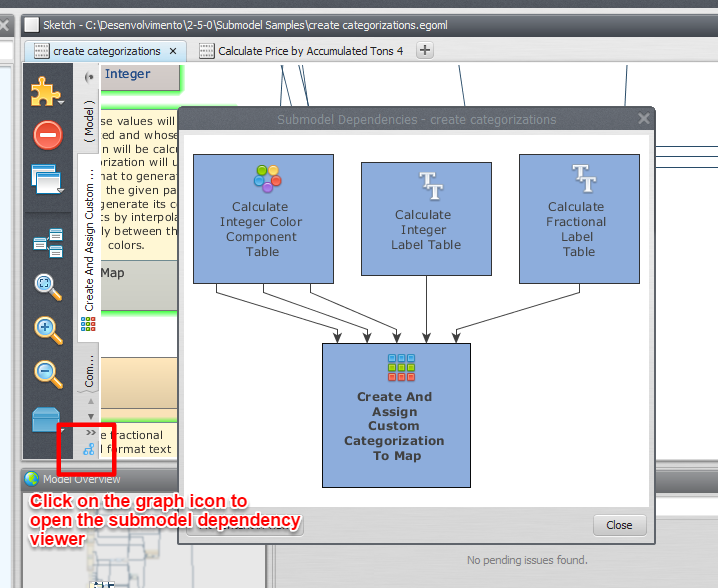
The dependency graph viewer button shows the dependencies of local submodels, including dependencies on user, store, and system submodels. See Submodel Dependencies.
Functor Borders
The functor representation uses borders to convey certain information. More than one border can be visible at the same time:
- Yellow border – the functor has one or more warnings.
- Red border – the functor has one or more errors.
- Green border – the functor exports input and/or output ports as part of a submodel.
- Blue border – the functor’s input and/or output ports are exported to a wizard. Functors that are part of a submodel cannot export ports to wizards.
Functor Action Bar
Shown whenever a functor is selected. It provides the actions for the selected functor: editing, commenting, inspecting, and so on. The available actions depend on the functor.
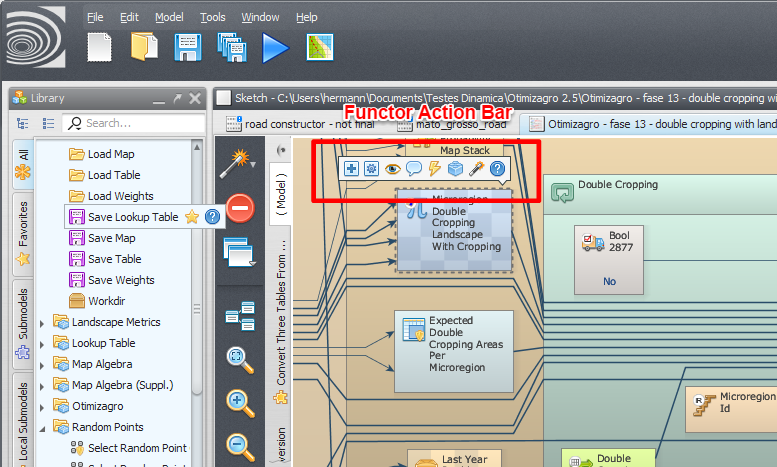
- The bar remains visible when the selected functor is off screen. It then shows the functor’s name; click the name to center the view on the functor.
- The bar is not available when more than one functor is selected.
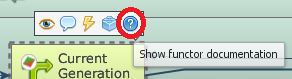
- Clicking the “?” icon opens the functor information panel, which lists the functor’s ports. Click a port name to select the corresponding connection in the model view. Next to each port name, the panel shows whether the port is connected, being edited, or being viewed.
Connection Action Bar
Shown in the upper-right corner of the panel whenever a connection is selected. It provides the actions for the selected connection.
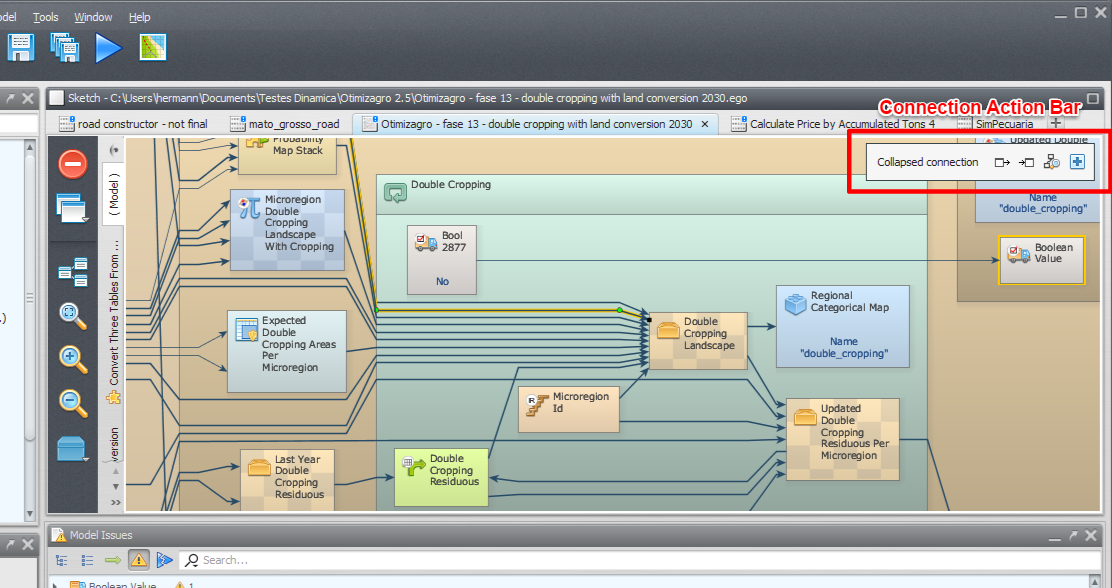
Hovering over a port name in the bar shows a tooltip for the port and for the functor it belongs to, including its banner, comment, and alias.
Connecting Functors That Are Far Apart
To connect functors that are not visible on screen at the same time, use one of these methods:
- Select the source functor and, without selecting the destination functor, scroll the view until the destination becomes visible (the source functor’s action bar remains visible). Choose “create connection” in the action bar and click the destination functor.
- Use the selection navigation:
- Click the source (output) functor. You can also search for it in the Explorer and click the View functor button there.
- Do the same for the destination (input) functor.
- Click the connection button in the action bar and, while the connection is in progress, press Alt+Right Arrow. This selects the destination functor and brings it into view.
- Click the destination functor to complete the connection.
Alt+Left Arrow and Alt+Right Arrow navigate between your most recent functor selections. Hold Alt while pressing the arrows to skip across several selections.
Copying and Pasting
After copying the current selection with Copy Selection or Ctrl+C, you can paste it into the same model, into another model, or into an external text editor.
- In the same model, functors are reconnected to the output ports their originals were connected to. Press Ctrl+Shift+V to paste without this reconnection.
- In another model or an external text editor, ports connected to functors that were not copied are shown as disconnected (
.UNBOUND). - In an external text editor, the selection is pasted as EGO Script, written according to the settings in Options | EGO Script (see Options and Performance).
- You can also paste a script fragment copied from an external text editor into a model. The fragment must be syntactically valid. Ports connected to variables whose definitions were not copied are treated as disconnected.
Drag and Drop
- Models, images, R and Python scripts, and files in general can be dragged into the sketch. What is done with the file depends on its representation.
- Dragging an R or a Python script creates a Calculate R Expression or a Calculate Python Expression functor, respectively. The script’s content fills the
expressionport. - A filename can be dragged into any filename editor (
MapFilename,TableFilename,Folder, etc.). The filename fills the editor. - If the application is run as administrator, drag and drop of files from Windows Explorer is disabled. This is done by Windows and affects any application, not just Dinamica EGO.
Model Overview
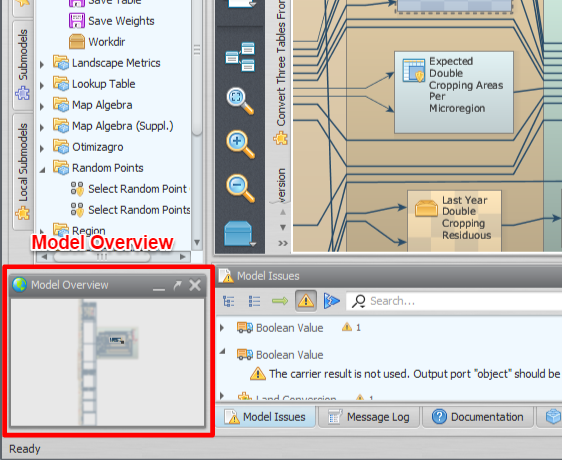
Shows an overview of the current model or local submodel. Use it to pan and zoom the model view.
-
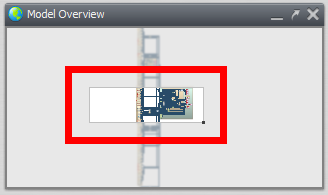
Click the part of the model you want to see, or drag the visualization square with the left mouse button, to pan.
-
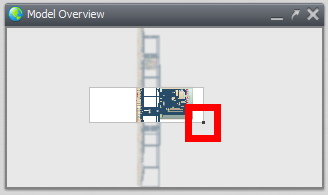
Drag the marker at the lower-right corner of the square to zoom in and out.
You can also zoom with the mouse wheel in either the Overview or the sketch.
Explorer
Shows all functors in the current model according to their hierarchy, and can show the total time spent by each functor. Click a functor in the Explorer to go to it in the model.
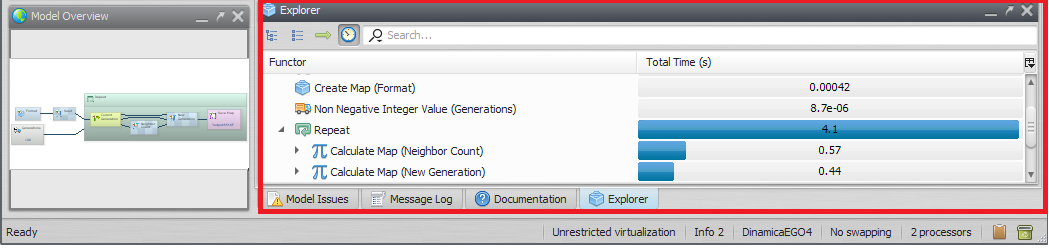
- The Attributes column shows information about certain functors, such as whether a loop can execute multiple steps simultaneously and whether a functor has input and/or output ports exported as part of a submodel or wizard. Hover over an attribute icon to see its meaning.
- To find the functors that take the most time to execute, click Show model bottleneck only. Only the 10% of functors responsible for the largest total execution times are shown. This is also available for the local submodel panels.
Issue Panel
Lists functors with their critical and non-critical issues.
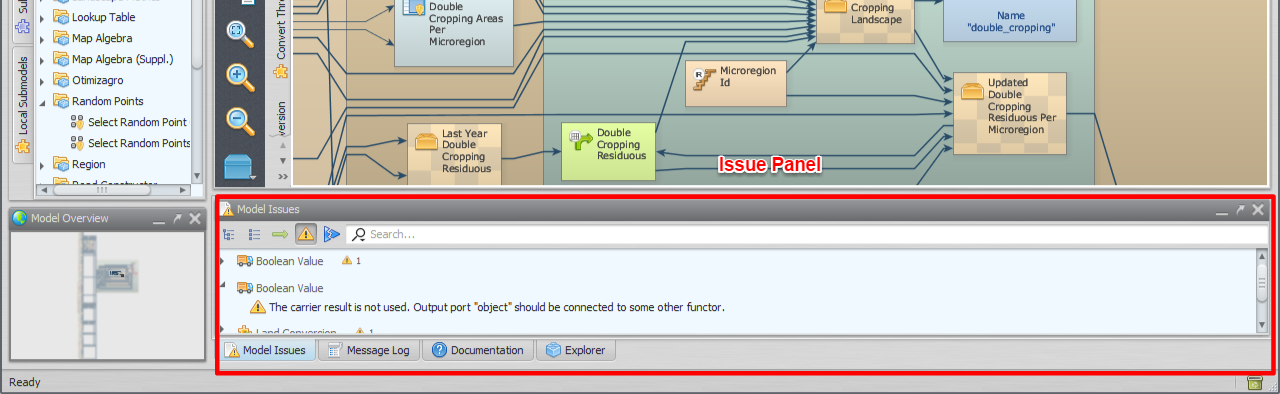
Double-click an issue to locate its functor in the current model or submodel.
- Warnings are non-critical issues and might not prevent the model from executing correctly.
- Errors are critical issues that prevent the model execution from completing.
- Runtime errors are issues detected during the last model execution. They might not occur again the next time the model runs. The panel retains the most recent errors and warnings from execution while Also show last execution issues is enabled.
Message Log
Shows the log messages produced by all executions in the current session: what is running, the execution steps, explanations of errors, and when each message occurred. The amount of detail is set by the message log level in Options and Performance.

While a model runs, the progress bar in the lower-left corner of the interface shows its progress. Hovering over it displays a tooltip with information about the execution, including the task each worker is performing. The tooltip keeps updating while the pointer stays within it.
Documentation Panel
Shows the web documentation of a functor. It appears when you choose to show a functor’s documentation from the functor action bar.

Searching in the Panels
You can search with special filters in every search box of the interface (Functor Library, Explorer, Issue Panel, Submodel Manager, and so on). For example, is:functor shows only functors, and is:loop shows only containers that are loops. To use them, enable Also search for additional info in the search box menu.
Filters common to all panels:
is:container, is:loop, is:junction, is:carrier, is:hook, is:mux, is:loader, is:saver, is:deprecated, is:submodel, is:systemsubmodel, is:usersubmodel, is:localsubmodel, is:storesubmodel, is:functor
Specific to the Explorer: is:hollow, is:submodelinput, is:submodeloutput.
Specific to the Issue Panel: is:hollow, is:runtime, is:error, is:warning.
In the Explorer you can also search by values defined in the port editors of basic types: enter the value, or part of it, to find the functor containing the matching port. The basic types are RealValue, BooleanValue, Percent, String, Name, Folder, NullValue, TableValue, TableCellType, IndexOrName, CellType, LogTag, the IntegerValue type family, and the Filename type family.
Prefixing a search term with ! excludes the matching results instead of including them. This works in the Functor Library, the Explorer, the Issue Panel, the Submodel Manager, and the search fields of the projection editor.