Lesson 8: Inserting and getting a specific value into a table
The aim of this lesson is getting and inserting specifics values from and into a table on Dinamica. We will use the Get Table Value, Set Table Cell Value, Add Table Column, Set Table By Key and Get Table From Key functors and the following files:
- The IBGE crop information Table (
guidebook dinamica\database\tables\ibge crop information.csv) - The 1999_production_value Table (
guidebook dinamica\database\tables\1999 production value.csv) - The 1999_harvested_area Table (
guidebook dinamica\database\tables\1999 harvested area.csv) - The 1999_production Table (
guidebook dinamica\database\tables\1999 production.csv)
Let’s go!
- From the Input/Output tab, grab a Load Table and place it on the sketch. Double click it, browse to the folder
guidebook dinamica\database\tablesand open theibge crop information.csvfile.
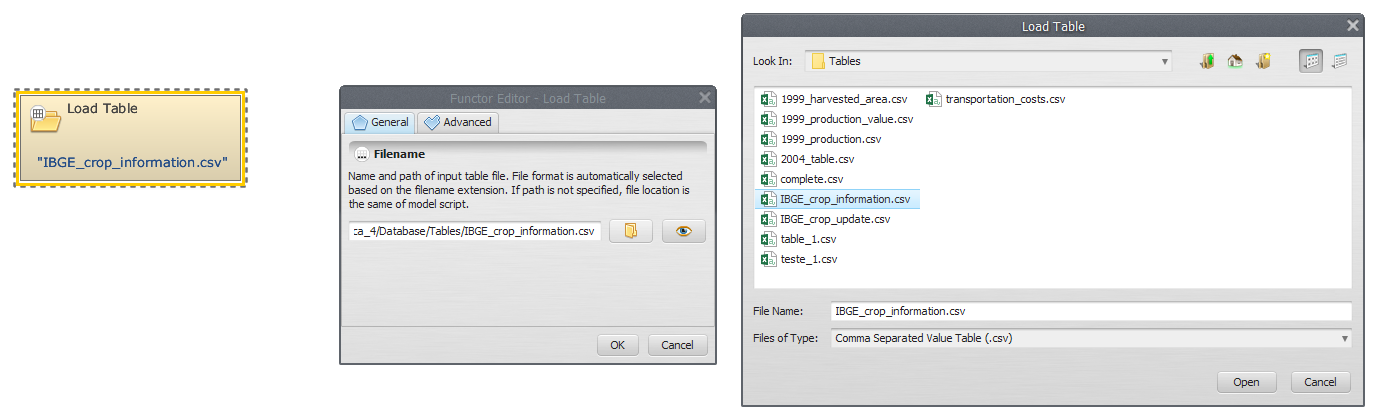
Important: Only multi-column CSV - comma separated value format is accepted
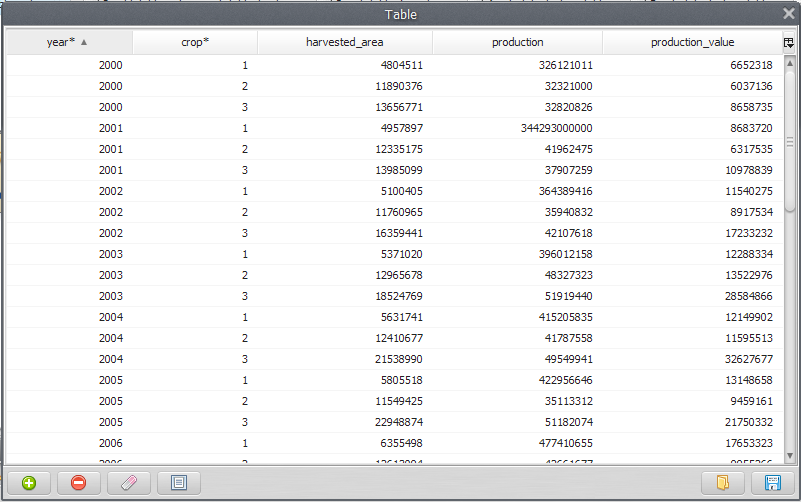
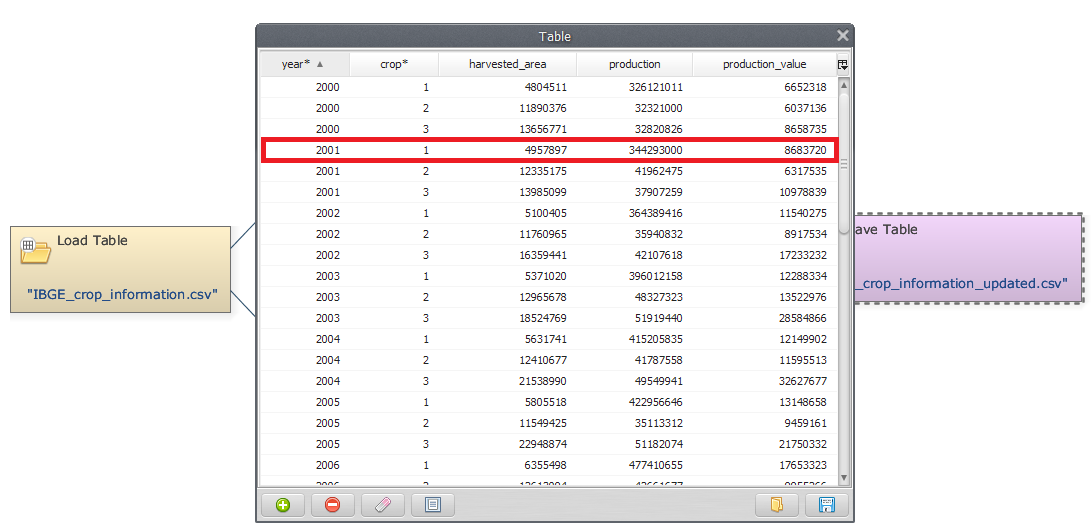
- The first two columns are considered the keys of the file, being used to access a certain data in the table. Click on eye button of Load Table to see the table.
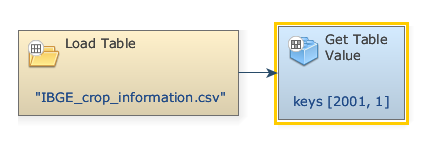
- Grab a Get Table Value and place it on the sketch. Connect Load Table to Get Table Value.
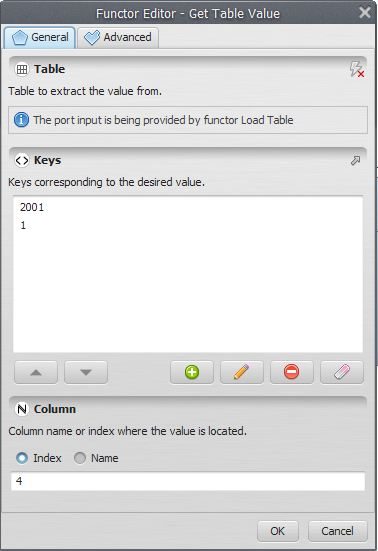
- Double click the Get Table Value to enter the keys corresponding to the sought-after values and the column name (highlighted by an asterisk). In the box Keys, enter
2001. Next, enter1(The Key to identify the wanted value on the table). Also, in the Column tab, add4, i.e., the column name or index where the value is located.
Note: If the given keys are not found in the input table and the Value If Not Found parameter, in the Advanced Tab, is not provided, an error will be reported.
- From the Table tab, grab a Calculate Value and place it on the sketch. Assign a number to Number Value and connect the Get Table Value to Number Value. In the Connect ports window, select Value.
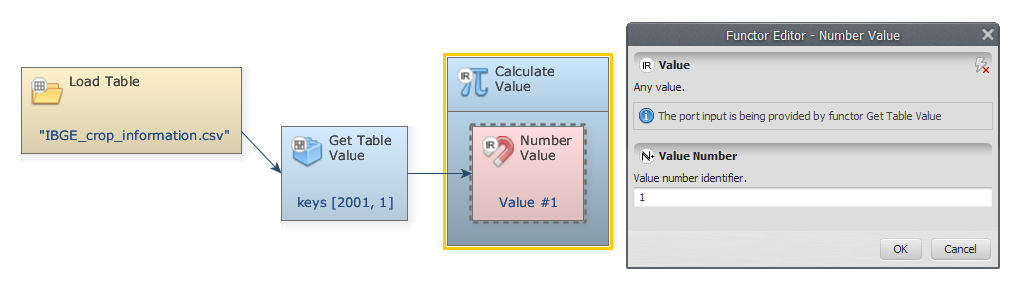
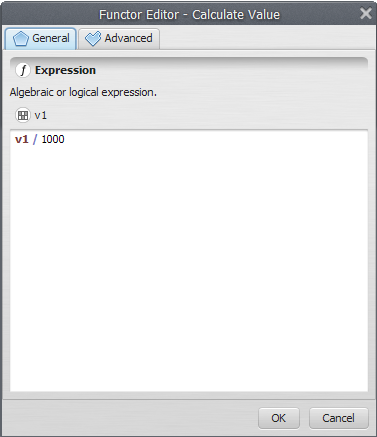
- Double-click on Calculate Value to add a logic or an algebraic expression. We divide
v1(the selected value) by 1000,v1/1000, and click OK.
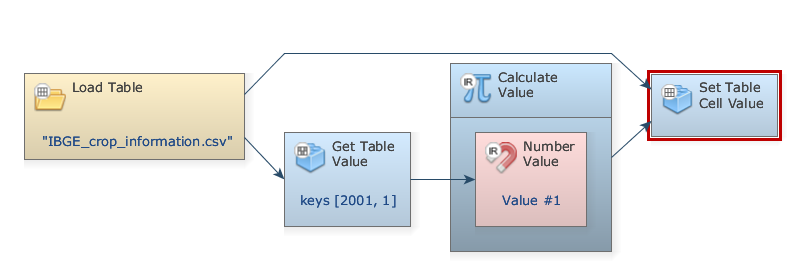
- From the Table tab grab a Set Table Cell Value and place it on the sketch. Connect Calculate Value and Load Table to Set Table Cell Value. In the Connect Ports window, select Value input port for the output of Calculate Value.
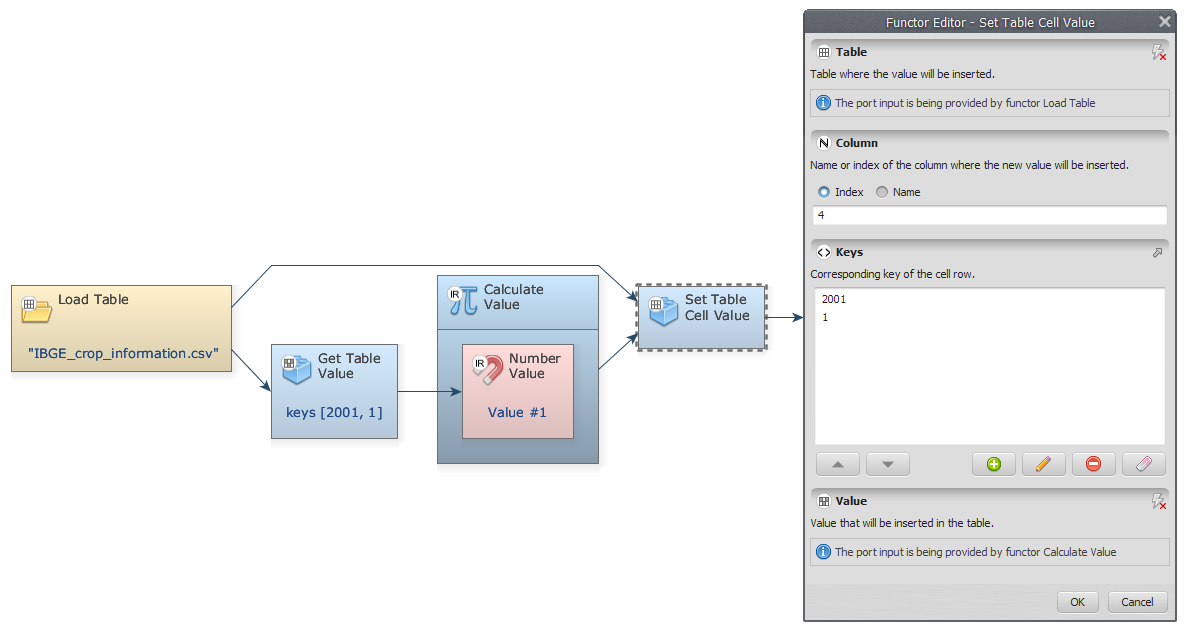
- Double-click Set Table Cell Value. To identify where the sought-after value is located, on the Keys input enter
2001,1(corresponding to Year 2001 and Crop 1) and add the Index4on the Column input.
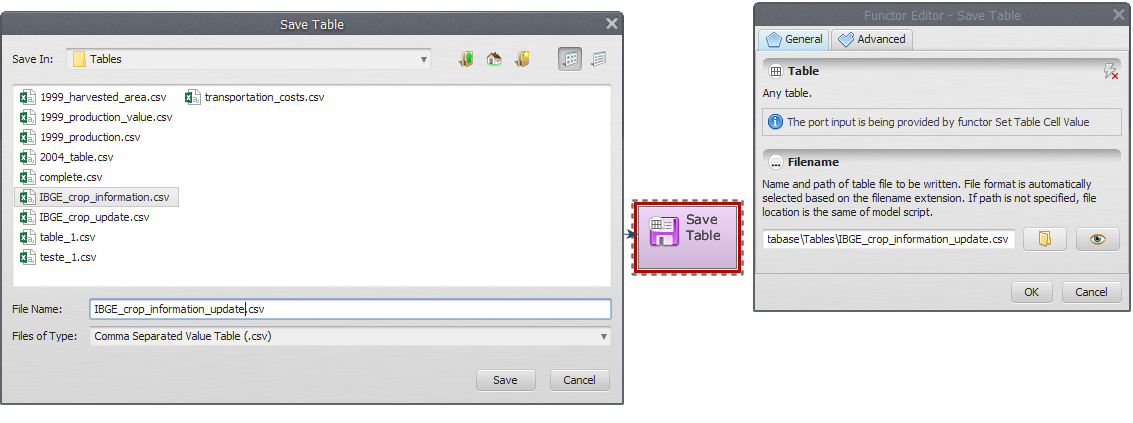
- From the Input/Output tab, grab a Save Table and place it on the sketch. Connect Set Table Cell Value to Save Table, browse to
\guidebook dinamica\models\add table column set table by keyand enter the file nameibge crop information updated.csv, which the next lesson uses. The final model will look like this:
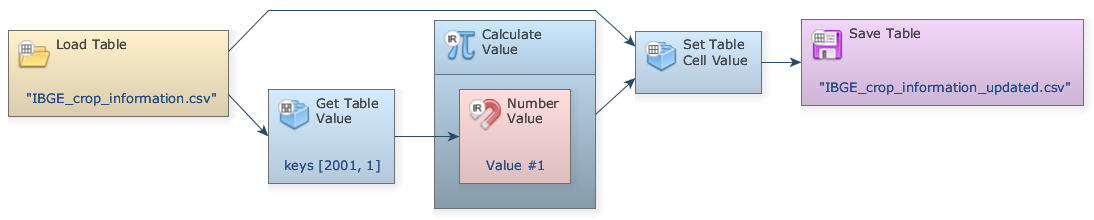
- Save and run your model. Select the Save Table functor and click on the eye button to see the result.
Congratulations, you have successfully completed this lesson!
See also: Manipulating Tables and Lookup Tables covers the table and lookup table functors and techniques in more depth.